eSIM APN Settings: iPhone, Samsung and Pixel
Last checked: 25 October 2026
An APN (access point name) tells your phone how to reach the internet through a mobile network, and most Slashtel eSIMs connect without it being set by hand. You only need to enter eSIM APN settings if the eSIM shows signal bars but pages and apps do not load, or the phone shows a No APN error. The APN to use is in your Slashtel delivery email.
What an APN is and when you need one
An APN (access point name) is the setting that tells your phone how to reach the internet through a mobile network. Most Slashtel eSIMs connect without any APN being set by hand, so leave the settings alone unless data is not working.
Set the APN yourself only when one of these is true:
- The eSIM shows signal bars, but web pages and apps do not load.
- The phone shows a No APN error.
There is no single APN that works for every eSIM. The correct APN depends on the destination and the network, which is why you take it from your own order rather than copying one from another trip. If you have not installed the eSIM yet, follow the install guide for iPhone and Android first, then come back here if data does not start.
Find your APN in your Slashtel email
Your Slashtel delivery email shows the APN for each eSIM, highlighted in yellow next to it. If the email does not show one, message Slashtel on WhatsApp with your order reference and the team sends it.
Have the email open before you start, because you type the APN exactly as written. Keep the order reference to hand as well, since support asks for it. Do not guess an APN or reuse one from a previous eSIM: the value is tied to the destination and network of that specific plan.
Data line, data roaming and APN: the difference
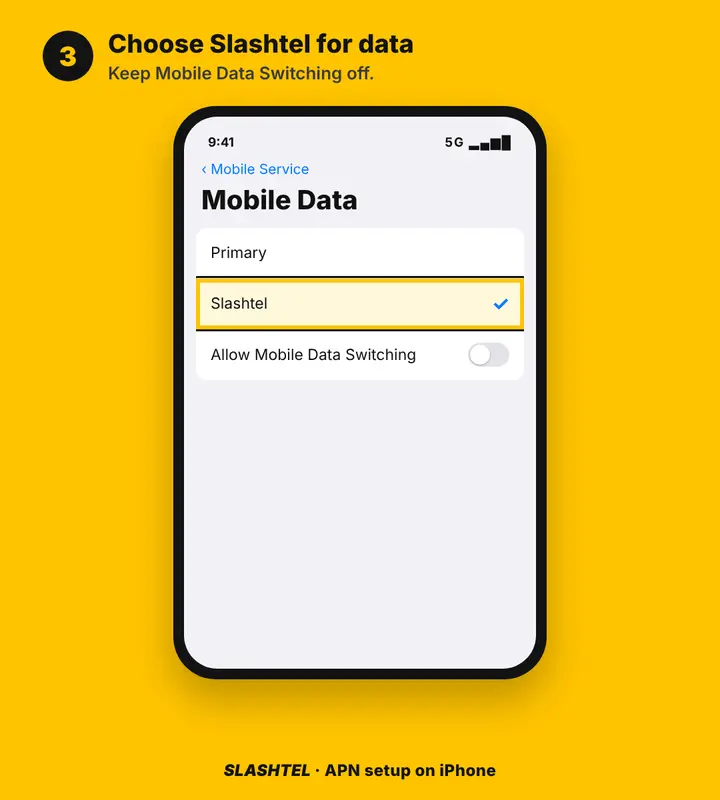
The data line is a different setting from the APN: it is the choice of which SIM carries mobile data. Choose the Slashtel eSIM for mobile data and keep your own SIM for calls, texts and bank codes.
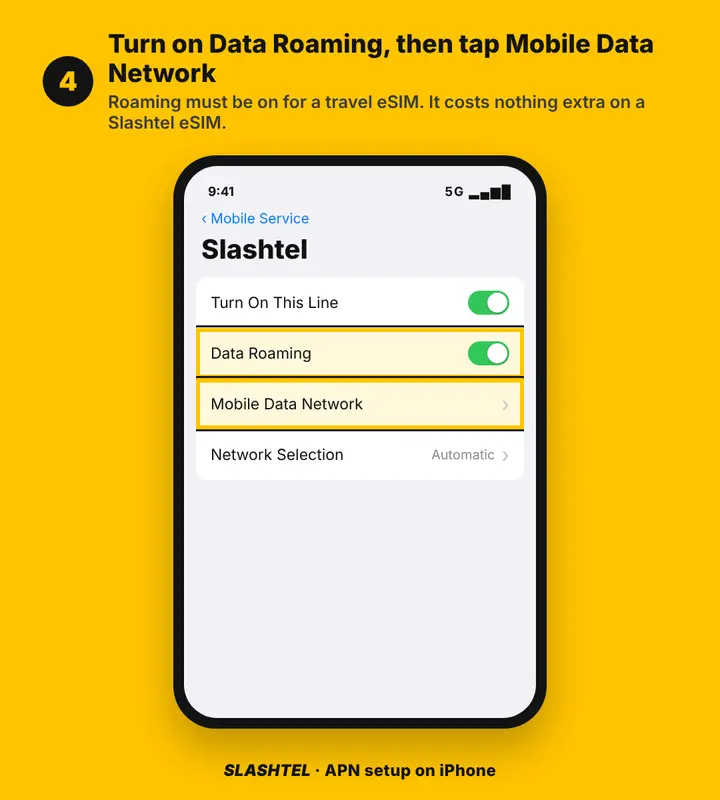
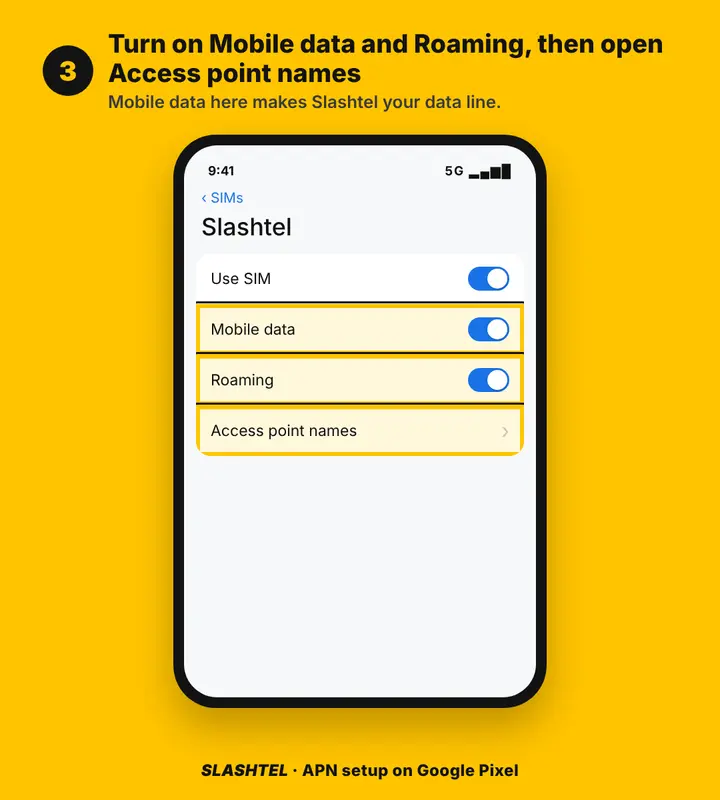
Data Roaming must be turned on for the Slashtel eSIM line, because a travel eSIM connects to local networks as a roaming line. Turning it on costs nothing extra on a Slashtel eSIM. Keep data roaming off on your home SIM to avoid charges from your home network.
So there are three separate things to check, in this order:
- Mobile data is set to the Slashtel eSIM.
- Data Roaming is on for the Slashtel eSIM line and off for your home SIM.
- The APN matches your email.
Slashtel eSIMs are data only: there is no local phone number and no calls or SMS. WhatsApp and other internet calls work over the data. For more on how calls, texts and bank codes behave with a data eSIM in the phone, see the calls, texts and OTPs guide.
Set the APN on iPhone
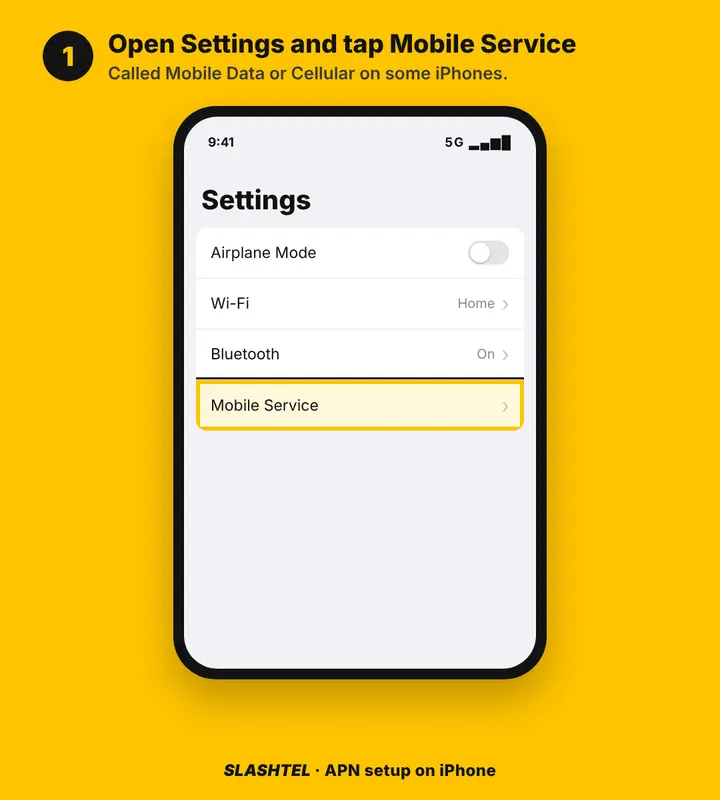
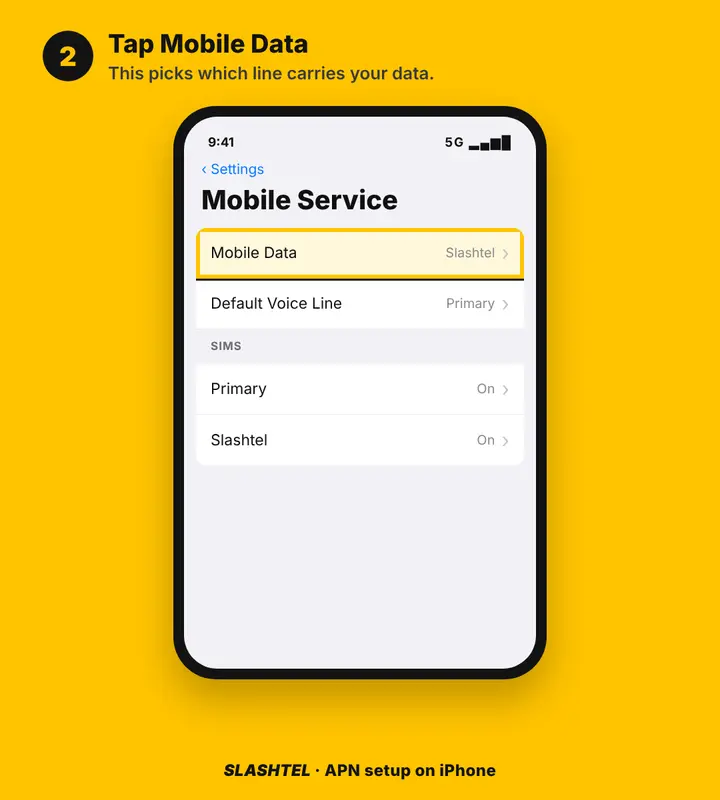
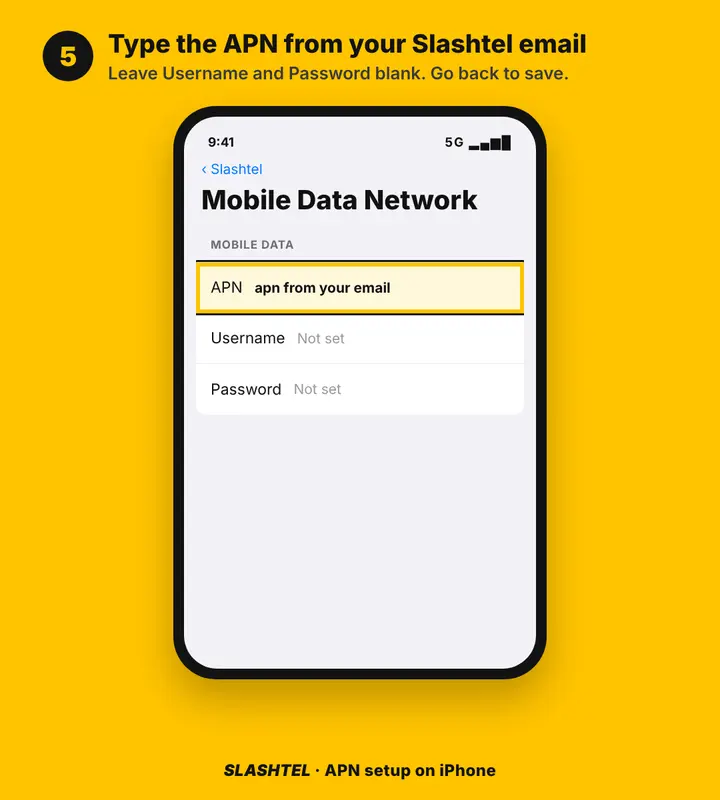
On iPhone, open Settings, tap Mobile Service (called Mobile Data or Cellular on some iPhones), tap Mobile Data and choose Slashtel, keep Allow Mobile Data Switching off, then tap the Slashtel line, turn on Data Roaming and tap Mobile Data Network.
On the Mobile Data Network screen, type the APN from your email in the APN box under Mobile Data. Leave Username and Password blank, then go back to save. This is the screen to screenshot if you need help later.
If you are unsure how to set APN on iPhone because the menu names differ between models, look for the line carrying the Slashtel eSIM and open its Mobile Data Network page; the APN field sits under the Mobile Data heading.
Set the APN on Samsung Galaxy
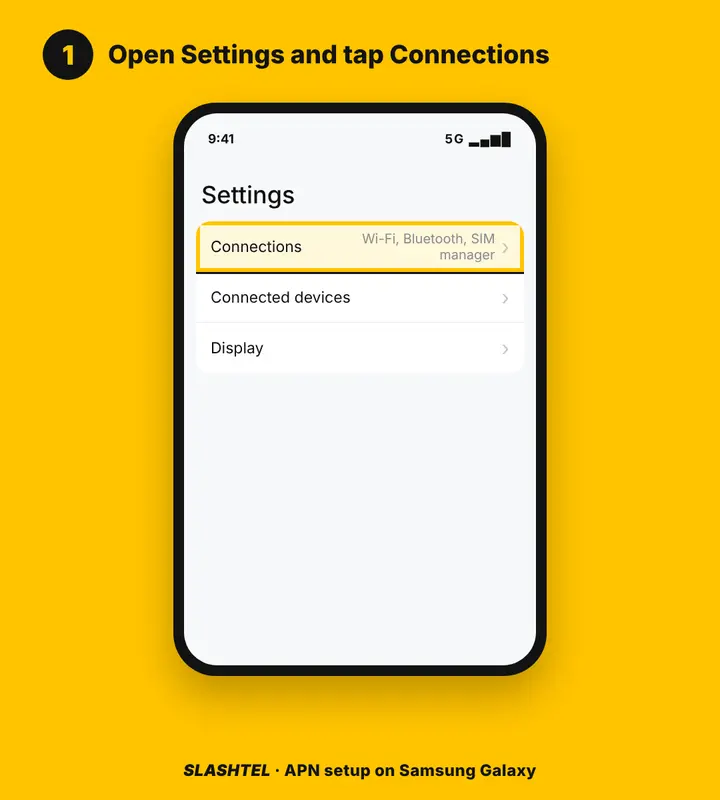
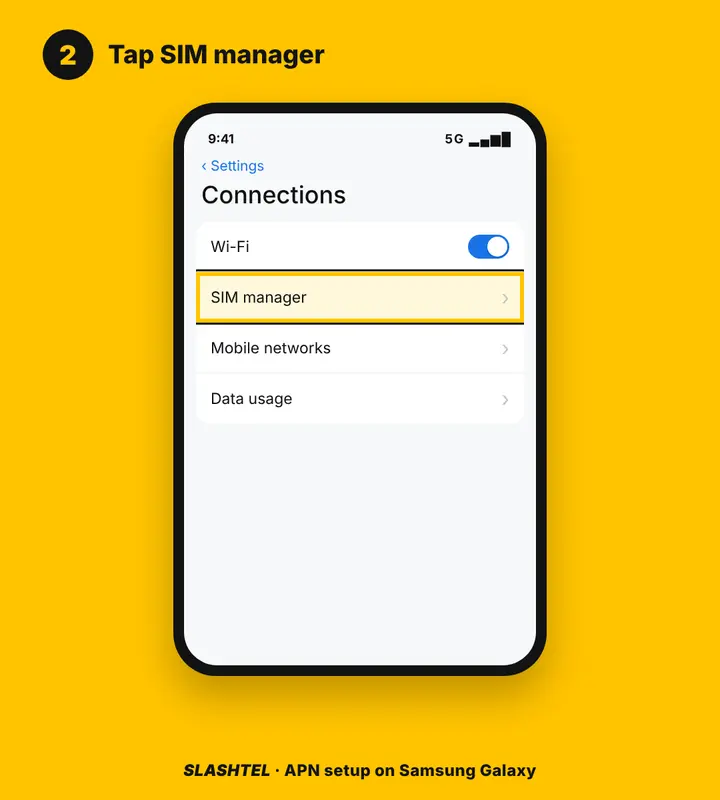
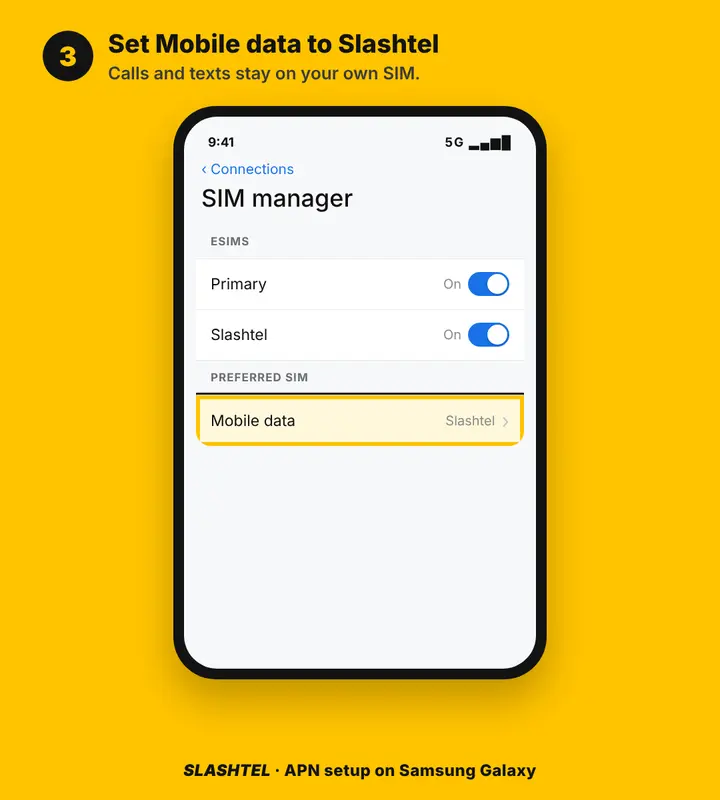
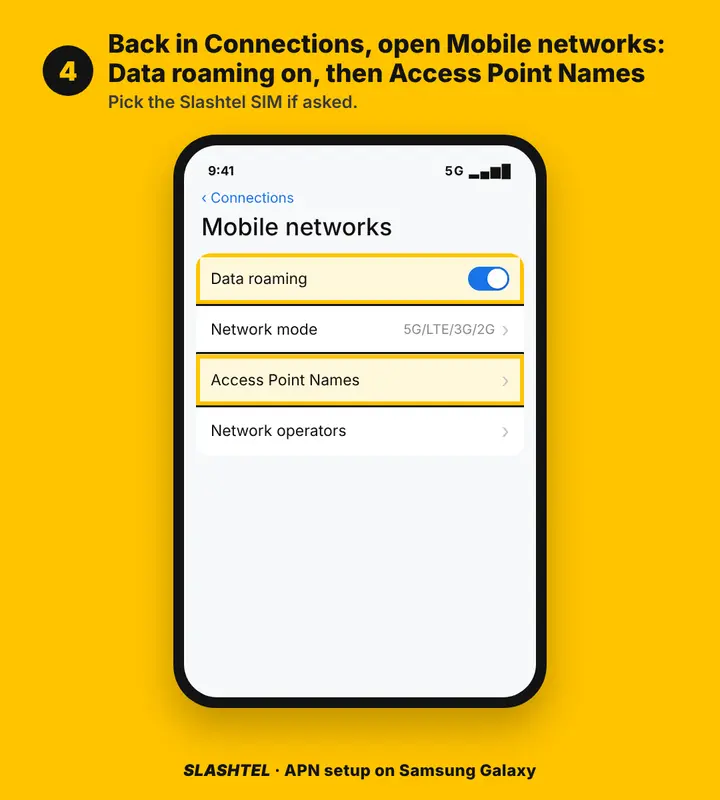
On a Samsung Galaxy, open Settings, tap Connections, tap SIM manager and set Mobile data to Slashtel. Then go back to Connections, open Mobile networks, turn on Data roaming and tap Access Point Names, choosing the Slashtel SIM if asked.
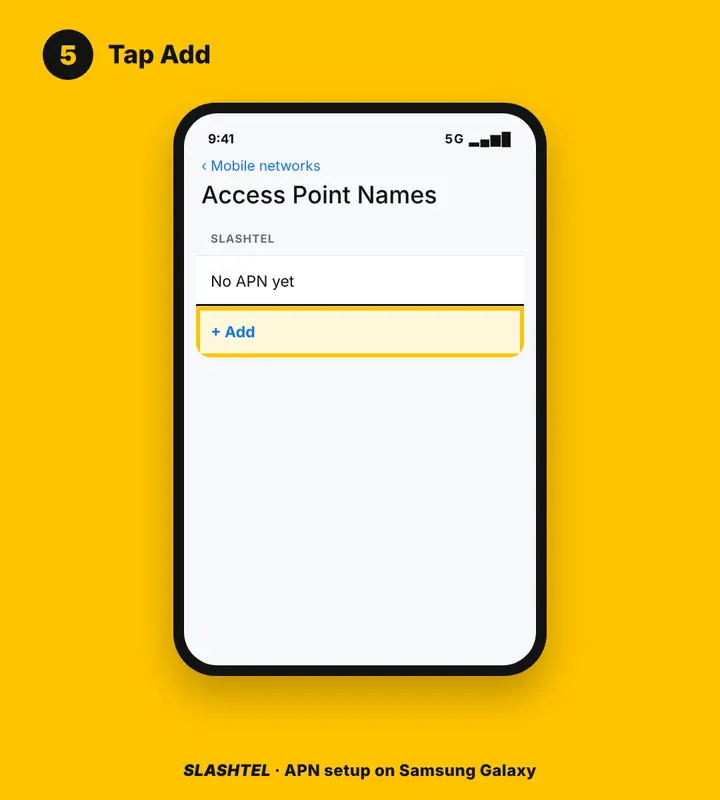
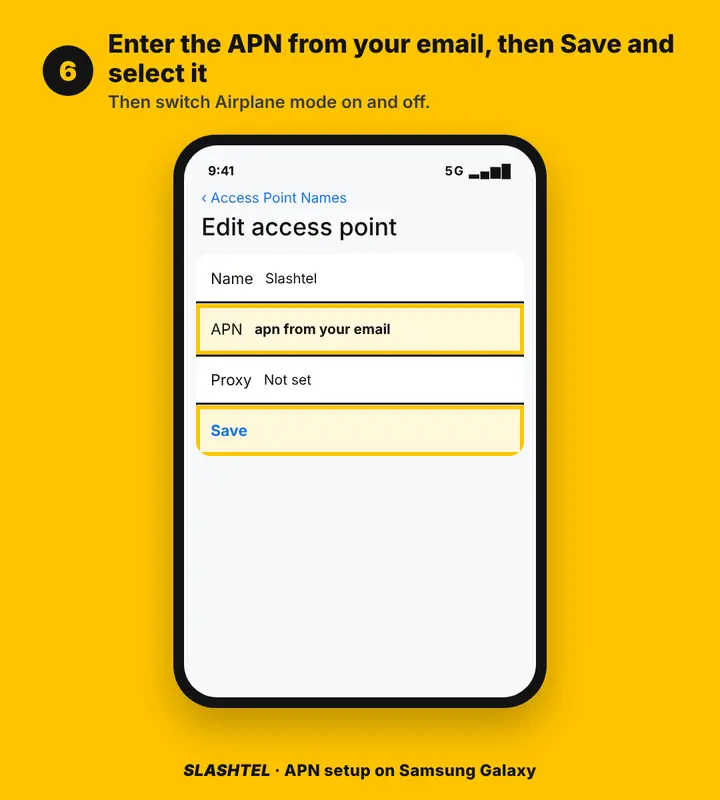
On the Access Point Names screen, tap Add, set Name to Slashtel, and type the APN from your email in the APN field. Then open the menu, tap Save and select the new APN so it becomes active.
These are the access point names Samsung phones use for data, so the new entry must be selected, not just saved. If two SIMs are installed, confirm you edited the entry for the Slashtel line.
Set the APN on Google Pixel and other Android phones
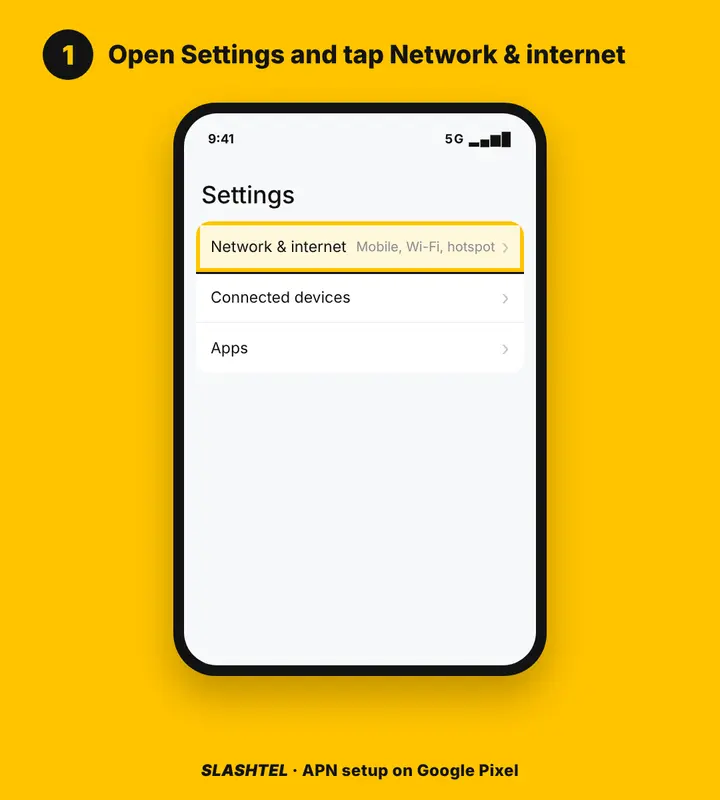
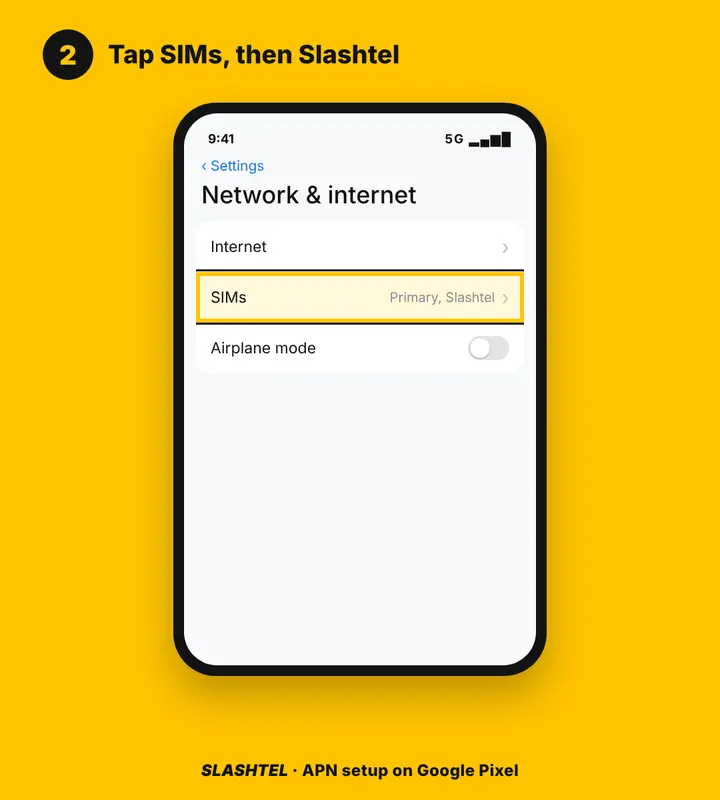
On a Google Pixel, open Settings, tap Network & internet, tap SIMs and then the Slashtel eSIM, turn on Mobile data and Roaming, then open Access point names.
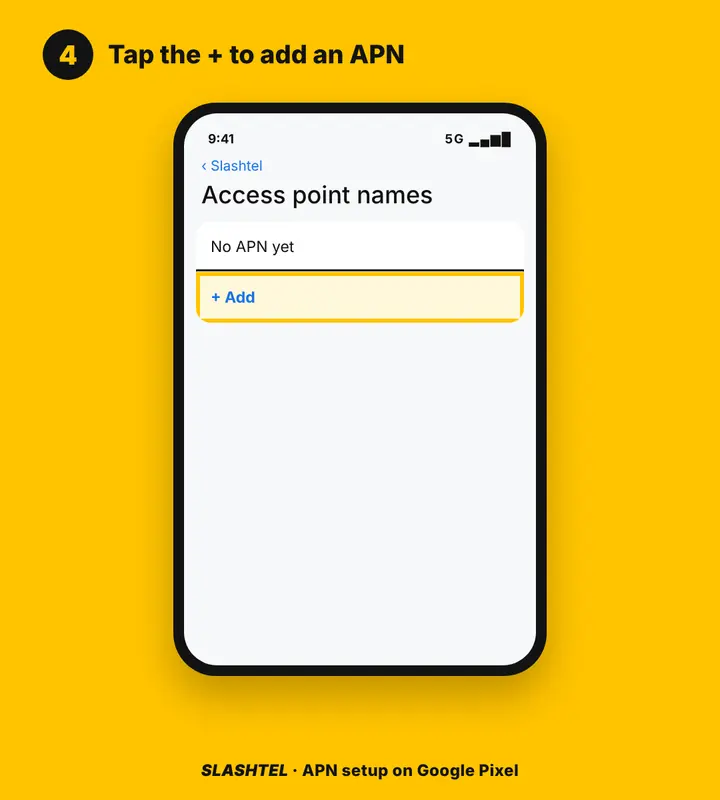
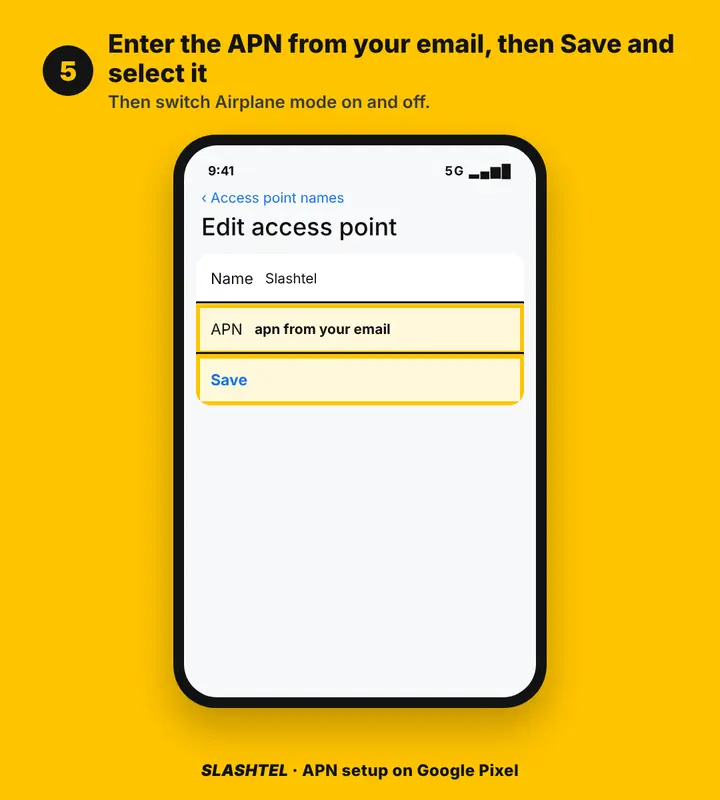
Tap the plus icon, set Name to Slashtel, type the APN from your email, then open the menu, tap Save and select the new APN. Other Android phones use similar menus under Mobile networks or SIMs, so the wording may differ but the order is the same: pick the eSIM, enable data and roaming, then add and select the APN.
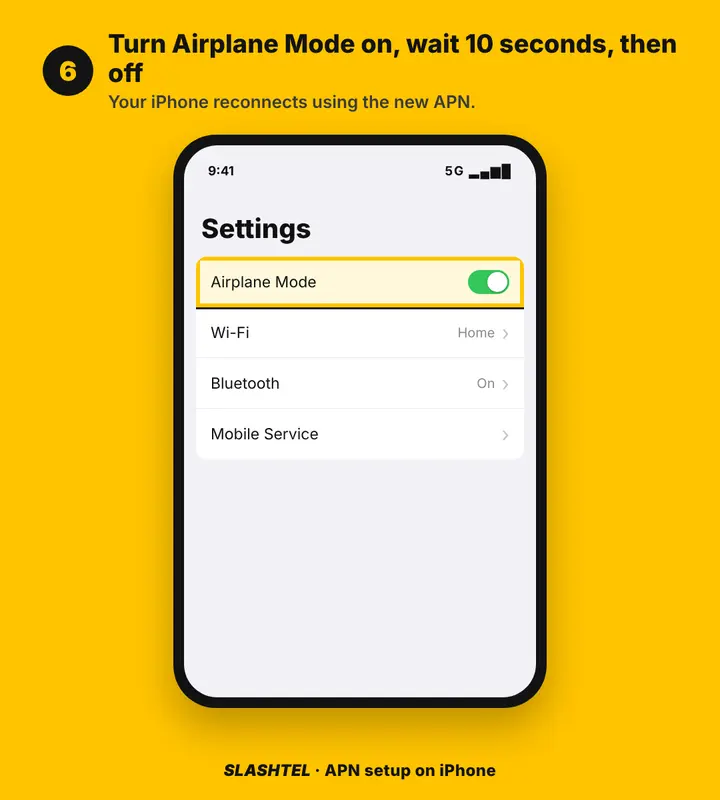
After saving the APN on any phone, turn Airplane mode on, wait about ten seconds and turn it off, so the phone reconnects with the new setting.
Still no data: quick checks
If there is still no data after setting the APN, check the Slashtel line is switched on, check Data Roaming is on for it, restart the phone, and make sure you are in a country your plan covers.
Two things often look like faults but are normal:
- The eSIM activates when it first connects to a network at the destination. Before you travel it can show No Service.
- Leave the eSIM installed even if it does not connect straight away, because the QR code can be used only once.
The network is chosen automatically and cannot be picked by hand, so do not spend time searching for one manually. If the phone reports a problem while adding the eSIM rather than with data, see the authentication failure guide. Check your plan covers the country you are in on the destinations page.
Get help from Slashtel
Slashtel support is on WhatsApp and email, 7 days a week. Send your order reference and a screenshot of the Mobile Data Network or Access Point Names screen so the team can check the settings.
A screenshot saves a round of questions, because support can see the APN you typed and the line it was saved to. You can also reach the team through the contact page.
The video and the pictures above show every screen on iPhone, Samsung Galaxy and Google Pixel, so you can compare your screen with the correct one before you message.
More detail is in our eSIM install guide.
Sources
Checked 25 October 2026. Menu names can differ by phone model and software version; the order of the steps stays the same.
Questions, answered
Do I always need to enter eSIM APN settings?
No. Most Slashtel eSIMs connect without any APN being set by hand. Set it only if the eSIM shows signal bars but pages and apps do not load, or if the phone shows a No APN error.
How do I set the APN on iPhone?
Open Settings, tap Mobile Service (Mobile Data or Cellular on some iPhones), tap Mobile Data and choose Slashtel, keep Allow Mobile Data Switching off, then tap the Slashtel line, turn on Data Roaming and tap Mobile Data Network. Type the APN from your email under Mobile Data, leave Username and Password blank, and go back to save.
What are the APN settings for Android?
The APN value comes from your Slashtel email, because it depends on the destination and network. On Android you add an entry named Slashtel, type that APN, save it and select it. On a Pixel the path is Settings, Network & internet, SIMs, the Slashtel eSIM, then Access point names.
Where do I find access point names on Samsung?
Open Settings, tap Connections, open Mobile networks, turn on Data roaming and tap Access Point Names, choosing the Slashtel SIM if asked. Tap Add, set Name to Slashtel, type the APN from your email, then open the menu, tap Save and select the new APN.
My eSIM has no internet. What should I check first?
Check the Slashtel line is switched on, check Data Roaming is on for it, restart the phone, and make sure you are in a country your plan covers. If signal bars show but nothing loads, set the APN from your email.
What does a No APN error mean?
It means the phone has no access point name saved for the Slashtel line, so it cannot reach the internet. Enter the APN from your delivery email on the Slashtel line, save it and select it, then toggle Airplane mode on and off.
Why does my eSIM show No Service before I travel?
The eSIM activates when it first connects to a network at the destination, so before you travel it can show No Service. That is normal. Leave the eSIM installed even if it does not connect straight away, because the QR code can be used only once.
Should data roaming be on for the eSIM?
Yes. Data Roaming must be turned on for the Slashtel eSIM line, because a travel eSIM connects to local networks as a roaming line. Turning it on costs nothing extra on a Slashtel eSIM. Keep data roaming off on your home SIM to avoid charges from your home network.
Can I keep my own SIM in the phone?
Yes. Choose the Slashtel eSIM for mobile data and keep your own SIM for calls, texts and bank codes, with data roaming off on it. Slashtel eSIMs are data only, so WhatsApp and other internet calls work over the data.
What should I send Slashtel support?
Send your order reference and a screenshot of the Mobile Data Network or Access Point Names screen. Support is on WhatsApp and email, 7 days a week, and can check the settings against your order.